
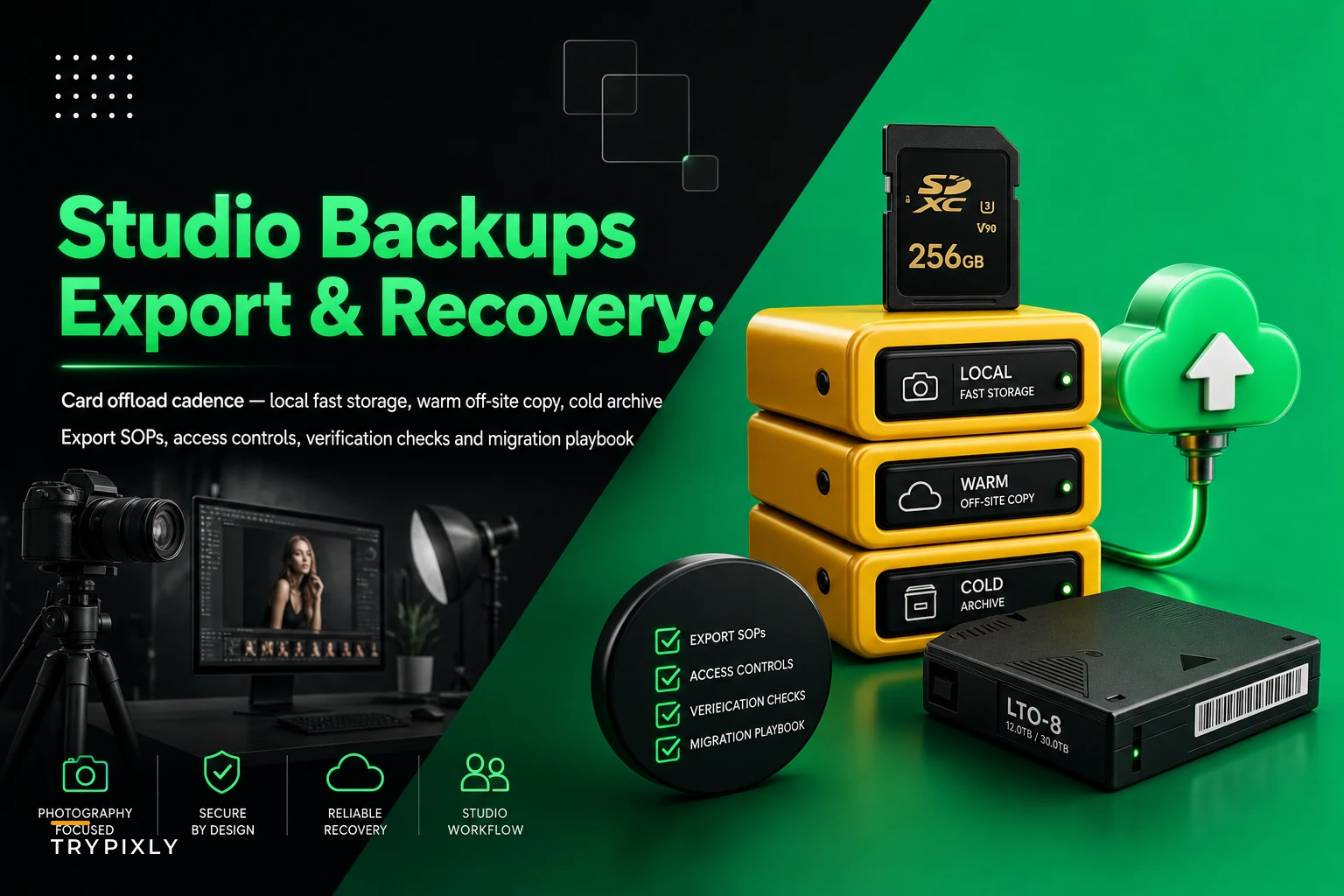

Most studios think they have backups. What they actually have is one copy of everything sitting on a NAS in the back room, maybe syncing to a cloud folder nobody has checked since the trial period ended. That's not a backup strategy. That's a single point of failure wearing a costume.
The real test isn't whether files are copying somewhere. It's whether you can hand a client their wedding gallery three years later, migrate off a photo-management platform without losing metadata, or recover from a drive failure the week before a 40-session school delivery is due. Those are three completely different problems, and most studios only solve one of them by accident.
This is a checklist built around those failure moments. Not theory about the 3-2-1 rule — the actual cadence, storage choices, export procedures, and verification steps that keep a studio operational when something breaks.
The failure modes nobody plans for
Before the checklist, it helps to name what actually goes wrong, because the generic advice ("keep three copies!") skips the situations that bankrupt studios.
A typical example: a studio runs a NAS with mirrored drives, feels safe because it's "RAID," and then the NAS controller dies. RAID protects against one disk failing. It does nothing when the enclosure fries, when ransomware encrypts the whole volume, or when someone deletes the wrong folder and the deletion syncs everywhere within minutes.
-
Silent corruption. Files copy fine but a percentage become unreadable over time. You don't find out until a client requests a reprint from 2021.
-
Sync-as-backup confusion. Dropbox or Google Drive syncs deletions and encryptions just as fast as it syncs new files. A "backup" that mirrors mistakes isn't a backup.
-
Platform lock-in. Your galleries, client records, and sales data live inside a proofing or studio-management tool. When you want to leave — or they shut down — there's no clean way to get your data out with structure intact.
-
The bus-factor problem. One person knows where everything lives and how the restore works. They go on leave during peak season and nobody else can execute a recovery.
Each of these needs a different control. Lumping them together under "do backups" is why studios stay exposed even after they think they've fixed it.
Backup cadence: match the schedule to how fast you create value
The right cadence isn't "nightly for everything." It's tiered by how quickly data changes and how painful it is to recreate.
Never miss a shoot or client detail again.
TryPixly helps you book, confirm, and manage every photography session seamlessly.
- Unified session and client management
- Automated client reminders
- Team calendar & resource scheduling
No credit card required
Raw capture from an active shoot is irreplaceable the moment it exists — you can never re-shoot a newborn session or a wedding. That gets backed up before anyone leaves the building, not overnight. Edited deliverables change throughout production, so they need frequent capture. Client records and sales data change constantly but are small, so they can back up often and cheaply.
Here's a cadence that holds up in real studio operations:
| Data type | Change frequency | Backup cadence | Retention |
|---|---|---|---|
| Raw capture (active jobs) | Once, then static | Same-day, two copies before ingest | Until delivery + 90 days |
| Working edits / PSDs | Daily during production | Hourly or on-save during active edit | Until job closed + 30 days |
| Delivered galleries | Static after delivery | On delivery, then weekly verify | Long-term archive (years) |
| Client & sales records | Continuous | Daily automated | 7 years for tax/legal |
| Contracts, releases, licenses | Occasional | On creation + daily system backup | Indefinite |
The thing most studios miss: raw capture needs its fastest protection and its shortest cadence window. The gap between a shoot and your first backup is the single riskiest period in your whole operation. That's footage nobody can recreate, often sitting on one card in one bag. A card-offload step that writes to two destinations before the card gets wiped eliminates the scariest gap in the chain.
A quick visual of that cadence and storage layers.
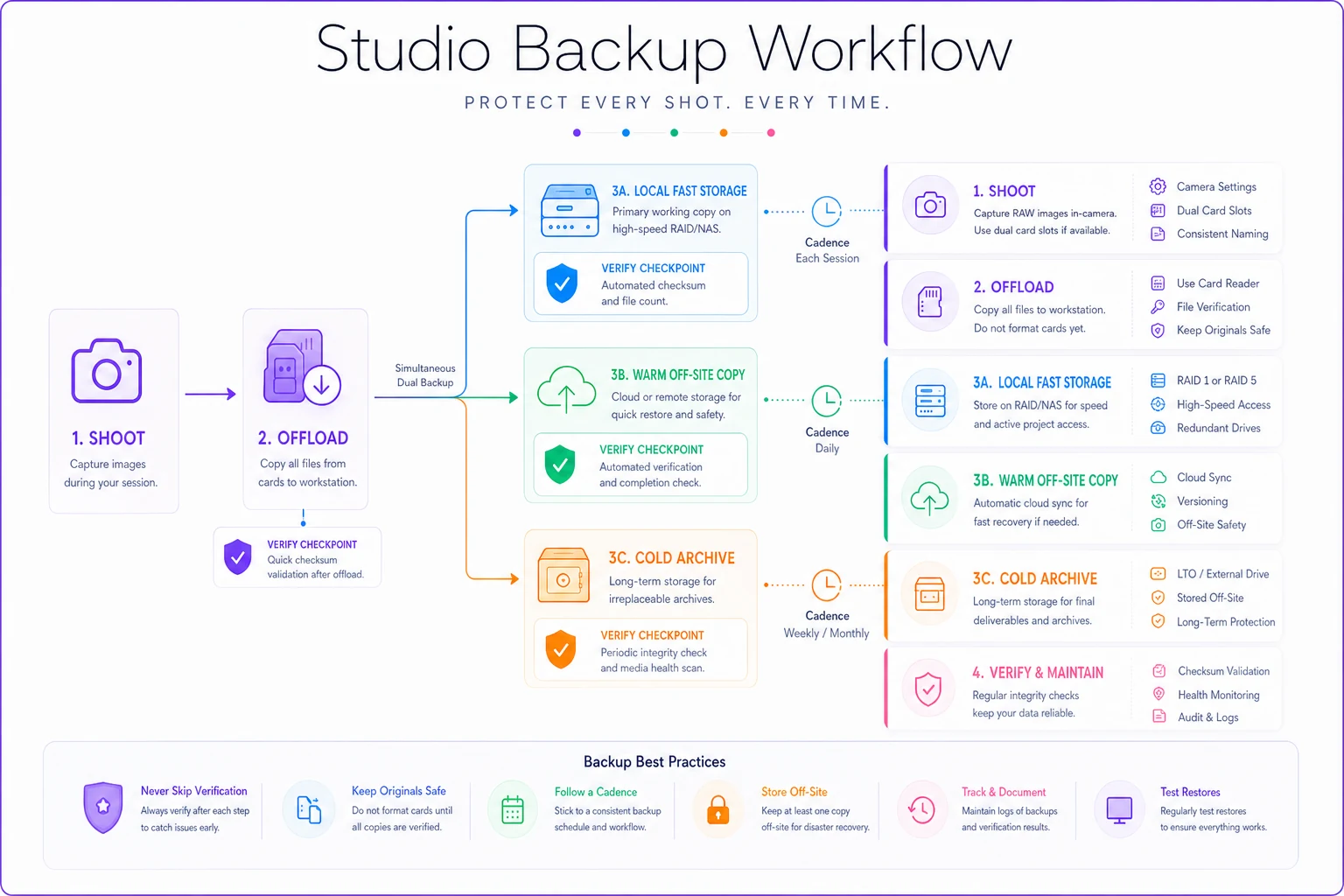
That visual shows the flow from card offload to warm off-site and cold archive and where to place verification steps.
Off-site storage: pick for recovery speed, not just redundancy
Off-site storage choices usually get made on price alone, which is how studios end up technically protected but practically stuck. When a drive dies mid-delivery, "your files are safe in cold storage" isn't comforting if restoring 2TB from an archive tier takes four days and a retrieval fee.
-
Warm off-site (fast restore) cloud object storage in a standard tier, or a second physical drive rotated to another location. This is what you pull from when something breaks this week. Prioritize restore speed and egress cost.
-
Cold off-site (archive) deep-archive cloud tiers for delivered galleries you must keep for years. Cheap to store, slow and sometimes expensive to pull. Fine, because you rarely need it urgently.
-
Geographic separation at minimum, your off-site copy should survive a fire, flood, or theft at your primary location. A backup drive sitting in the same building as the NAS is not off-site.
A practical pattern that works for small studios: active jobs live on local fast storage plus a same-city warm copy, delivered work migrates to cold cloud archive once the job closes, and client/sales records back up daily to a separate cloud account with its own login. That last detail matters — if your backup lives inside the same account as your production system, one compromised password loses both.
Export SOPs: the part everyone skips until it's an emergency
This is where most studios are genuinely unprotected, and it has nothing to do with drives. Your galleries, booking history, invoices, and client communications often live inside platforms you don't control. Exportability is a separate discipline from backup, and it determines whether you actually own your business data.
The question to ask about every tool you use: if this platform disappeared next month, what exactly could I get out, in what format, and how long would it take?
-
List every system holding client or business data — proofing/gallery host, studio-management/CRM, accounting, email, contract/e-sign tool, DAM.
-
Document the export path for each — exact menu steps, file formats produced, what's included and what's silently left out (metadata, timestamps, tags, client notes).
-
Run a real export quarterly — don't trust that the button works. Pull the actual files.
-
Verify the export opens and keeps structure — do galleries export with client associations intact, or just as a loose pile of JPEGs? Do invoices export with line items or only totals?
-
Store exports with your off-site backups — an export sitting only inside the platform you're trying to escape defeats the purpose.
A pattern that comes up repeatedly: a studio decides to switch platforms, hits "export," and discovers that client gallery access links, favorites, order history, and delivery dates don't come along. They get the photos but lose years of relationship context. Running the export before you need it is the only way to find out what's missing while you still have time to fix it.
This is also where studios protecting usage rights get burned — if your licensing and release records live only inside a storage tool with no clean export, you can lose the paper trail that protects your right to charge for usage later.
Access controls: who can delete, and who can restore
Backups fail just as often from permission problems as from hardware. Two mistakes dominate.
First, everyone has delete rights to everything. A second shooter clearing space on a shared drive, an editor "cleaning up" old folders, a contractor with full access long after their job ended — these cause more data loss than hardware ever does. Delete and overwrite permissions should be narrow. Most of your team needs read and add access, not the ability to destroy.
Second, restore ability is concentrated in one person. If only the owner knows how to execute a recovery, every day they're unreachable is a day the studio can't recover from a failure. At least two people should be able to run the restore, and the procedure should be written down somewhere outside the systems it depends on.
-
Separate accounts per person — no shared logins for backup or storage systems
-
Contractor access scoped to their job folder, with an expiry date set on day one
-
Delete/overwrite rights limited to a named short list
-
Backup account credentials stored in a password manager the owner and one trusted person can reach
-
Multi-factor authentication on every storage and backup account
-
A quarterly review removing access for anyone no longer active
Tie access reviews to contractor offboarding — remove access the day someone's contract ends.
Tying access reviews to contractor offboarding is the easy win — the day someone's contract ends is the day their storage access should end, not whenever someone remembers.
The migration playbook: moving data without losing it
Migrations are where studios discover how good their backups and exports actually were. Whether you're switching platforms, moving to new storage, or consolidating after a merge, a migration without verification is just hoping.
The core principle: never delete the source until you've verified the destination. Migrations fail when studios decommission the old system to save money before confirming the new one is complete and correct.
-
Freeze the source. Stop writing new data to the system you're leaving. Set a cutover date so you're not chasing a moving target.
-
Full inventory first. Count files, total size, and record counts on the source. You can't verify a migration if you don't know what "complete" looks like.
-
Copy, don't move. Transfer everything to the destination while leaving the original fully intact.
-
Verify by checksum, not by glancing. Match file counts and sizes, and spot-check file integrity. A migration that "looks done" in the folder view can be missing thousands of files.
-
Verify structure and metadata. Confirm galleries kept client associations, files kept capture dates and tags, records kept their relationships. This is where most migrations quietly break.
-
Run a live test. Pull a few real galleries and client records from the new system as if a client requested them. If a real retrieval works end to end, the migration is real.
-
Keep the source as a backup for a defined window. Don't delete the old system for at least 30–60 days after cutover, verified and untouched.
The verification steps aren't optional padding. A common migration disaster: a studio moves roughly 4TB to a new host, the transfer reports success, they cancel the old service, and three weeks later realize client favorites and a chunk of older galleries never came across. The source was already gone. Checksum verification before decommissioning would have caught it for the cost of an afternoon.
If your systems are tightly connected through integrations, migration gets riskier because breaking one connection can cascade — worth reviewing how integration failures ripple through studio tech before you start pulling pieces apart.
A real scenario
A two-photographer portrait and newborn studio handling somewhere around 300–350 sessions a year ran everything off a single NAS with a nightly sync to a consumer cloud folder. They considered themselves covered.
A power surge took out the NAS and corrupted the attached backup drive in the same event. The cloud sync had faithfully copied a batch of corrupted files from the night before the surge, overwriting the good versions. They recovered most delivered galleries but lost working edits on about a dozen active jobs — including three newborn sessions that could never be reshot. The cleanup, client apologies, partial refunds, and rush re-editing cost them roughly $4k–$6k and a chunk of reputation that doesn't show up on a spreadsheet.
The fix wasn't expensive. They moved to tiered cadence with same-day dual card offload, split their off-site into a warm cloud copy plus a rotated drive stored off-premises, turned off deletion syncing in favor of versioned backups, and limited delete rights to the two owners. The real change was the quarterly restore test — pulling a random gallery and confirming it opened cleanly. The first test caught a misconfigured archive path that would have failed silently for months. Twenty minutes a quarter turned "we think we're protected" into "we checked last month."
When heavy infrastructure makes sense — and when it doesn't
Not every studio needs enterprise-grade redundancy, and over-building backups wastes money that could go elsewhere.
When the full system makes sense: multi-photographer studios, anyone shooting irreplaceable events (weddings, newborns), high-volume operations like school and sports, and studios holding years of client archives with reprint revenue attached. The more you can't recreate, the more a layered approach pays for itself.
When it's overkill: a solo photographer shooting commercial work where files are delivered and the client holds the master copies, or a brand-new studio with almost no archive yet. Start with same-day dual copies and one solid off-site, then add cold archive and migration rigor as the archive grows.
Who should not skip it entirely: any studio that promises long-term reprint access, holds licensing or release records, or stores client galleries clients might request years later. For those studios, exportability and archive verification aren't nice-to-haves — they're the product.
Keeping this running without it becoming a job
The reason backup discipline decays isn't that owners don't care. It's that verification is invisible work with no deadline — until the day it has a very loud one. Nothing reminds you to run the quarterly restore test. Nothing flags that the export button stopped including metadata after a platform update.
This is where operational software earns its place, not by replacing judgment, but by making the invisible steps visible. A studio management platform that tracks which backups ran, surfaces a checklist when a job closes (archive the deliverables, confirm the off-site copy, log the delivery date), and reminds you quarterly to run the export and restore tests turns scattered good intentions into a routine that actually happens. The point isn't automation for its own sake — it's that the steps you'd otherwise forget get put in front of the right person at the right time.
Everything in this checklist works on a whiteboard too. The tooling just keeps it from quietly rotting between the day you set it up and the day you desperately need it.
The one thing to do this week
Pick your single most irreplaceable category of files — probably active-job raw capture or the last year of delivered galleries — and run one real restore. Not "check that the backup exists." Actually pull the files from your off-site copy onto a different machine and open them.
If they open cleanly with structure intact, you've confirmed more than most studios ever bother to. If they don't, you just found the problem on a quiet Tuesday instead of during a client's reprint request or a drive failure the week of delivery. That's the whole game — moving your failures to days when they don't cost you anything.
If they open cleanly with structure intact, you've confirmed more than most studios ever bother to. If they don't, you just found the problem on a quiet Tuesday instead of during a client's reprint request or a drive failure the week of delivery. That's the whole game — moving your failures to days when they don't cost you anything.
Ready to elevate your studio’s workflow?
Join 500+ studios using TryPixly to save time, reduce scheduling conflicts, and deliver exceptional client experiences.